Compliance
Stellar can be used to create compliance files.
You can create Meta Tag lists and categories that can be then attach to file which supports the compliance features.
In Stellar, the compliance file format is called .yumeta and contains a json structure.
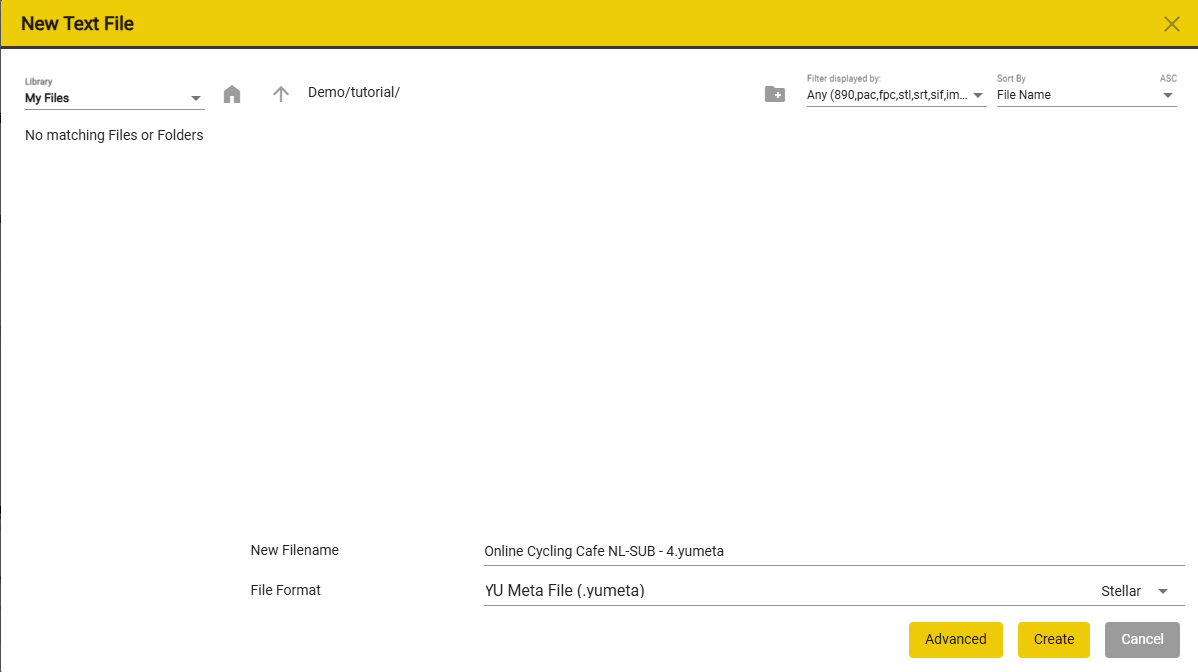
Creating a yumeta file
Files → Text Files → New
Creating a Tag List
Tasks → Manage Tasks → Stellar Manage → Meta Tag Lists
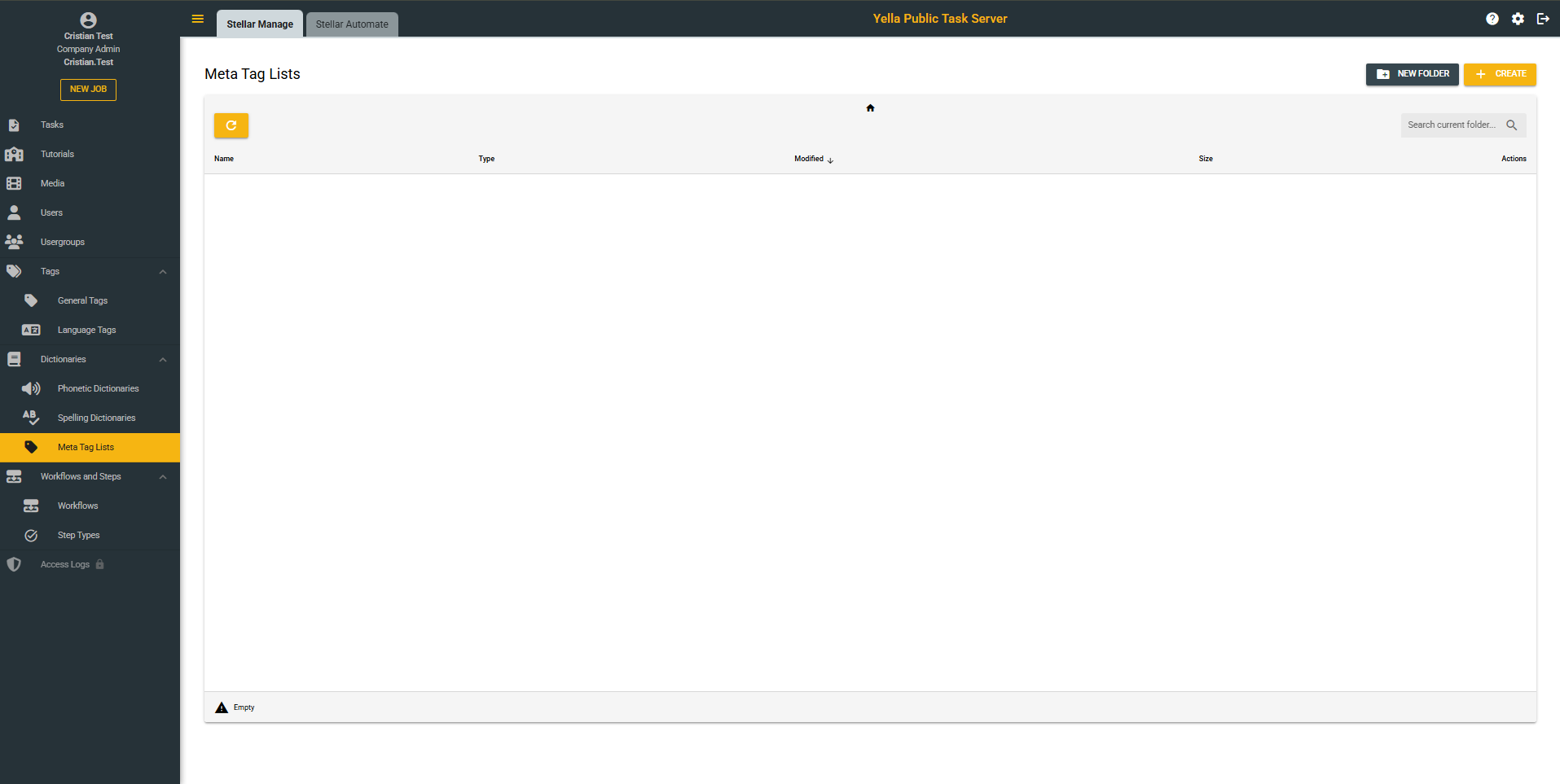
Here you are able to create and manager your Tag Lists.
To create a Meta Tag List press the  button.
This will open the create new meta tag list window.
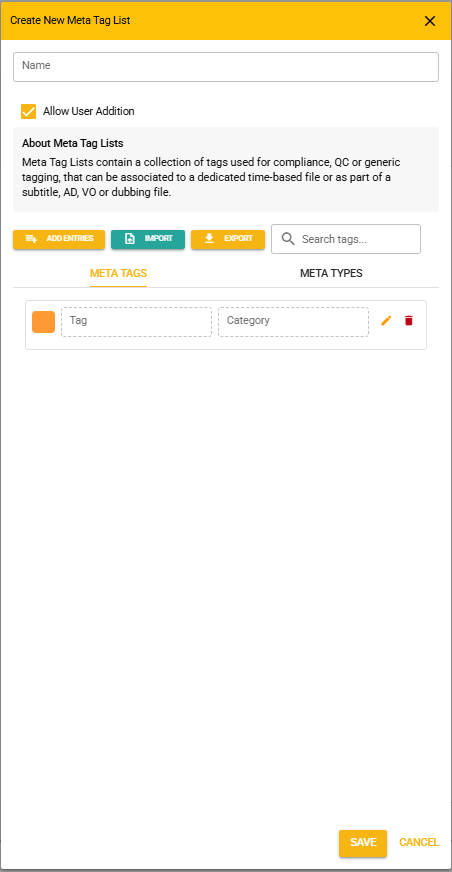
| UI Element | Description |
|---|---|
| Name | The name of your Tag List |
| Allow User Addition | Toggles the option for users to add their own tags to the list |
| Add Entries | Adds more entries to the tag list |
| Import | Allows the import of a tag list either from CSV or from JSON |
| Export | Allows the export of a tag list either to CSV or to JSON |
| Search Tag | Search for a specific tag in the current Tag List |
| Meta Tags Tab | Manage the current Tags in the Meta Tag List |
| Meta Types | Allows adding Meta Entry Types |
| Save | Save the entry |
| Cancel | Cancel Action |
Creating Tags from Stellar
(!) Only if the Tag List you have associated with the file allows the user to add more tags. (!)
With a compliance project loaded in Stellar, press the F3 key to open the Tag Window.
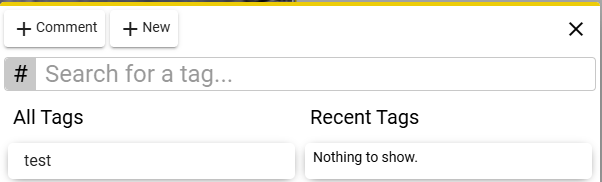
To Create/Add a new tag press on the +New button
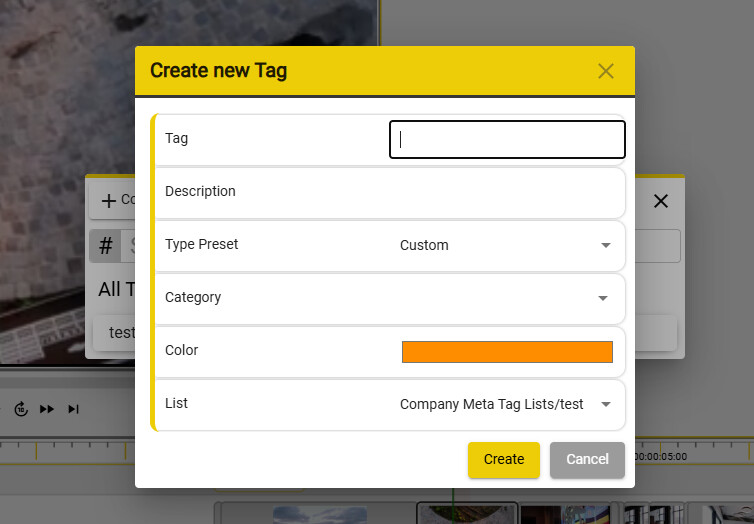
| UI Element | Description | ||
|---|---|---|---|
| Tag | Tag Name | ||
| Description | Tag description | ||
| Type Preset | Custom | ||
| Category | Category of the Tag | ||
| Color | Pick a color for your Tag | ||
| List | The Tag List in which you want to save the tag | ||
| Manual QC | |||
| Severity | Select the severity level of the QC Tag | ||
| List | The Tag List in which you want to save the tag | ||
| Create | Creates the Tag | ||
| Cancel | Cancels the Tag creation process |
Once you have pressed Create, the tag will be inserted in the currently selected Meta Entry

The tag will also added the Tag UI
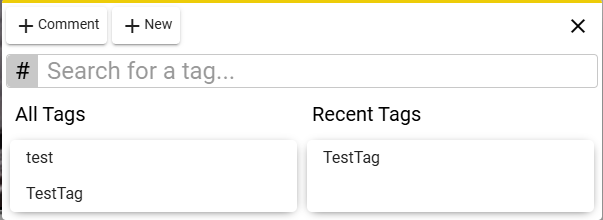
Create tags from the Manager
If you do not have a Meta Tag List - create one.
If you already have one - press on the pencil button.

Open the Edit Meta Tag list menu
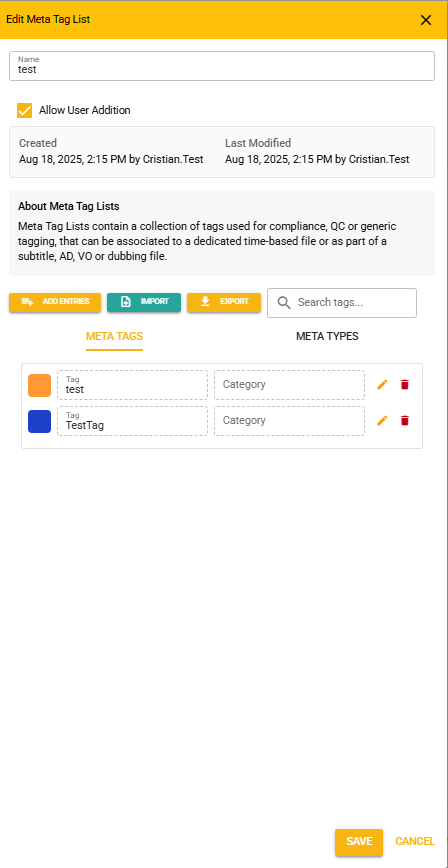
Click Add Entries to add a new Tag
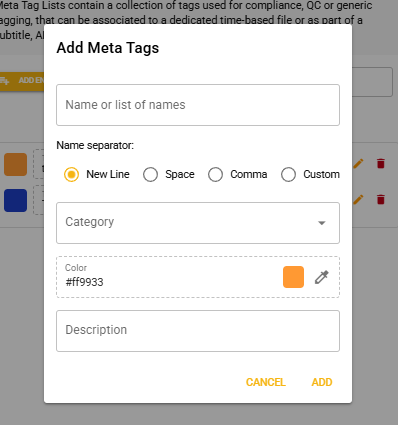
You can add multiple tags at the same time.
Select the separator that you would want to use when inputting the list of tags.
Type a category name then press enter to create a new category.
If you already have a category, then it will be shown in the drop down.
Select the colour of the tag.
Add a description for your tag.
Click ADD to save your new tag/tags
Editing tags
Press the pencil icon that corresponds to the tag that you want to edit.
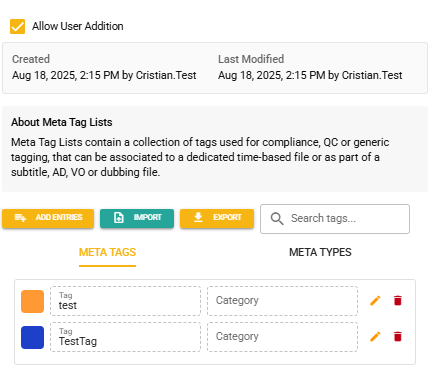
When you are done editing, you can press save.
Creating Meta Types
Each .yumeta entry can have a Meta Entry Type
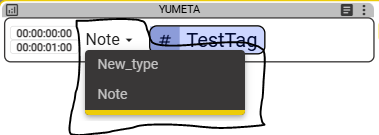
You can create these by selecting the Meta Types tab in the Edit Meta Tag List
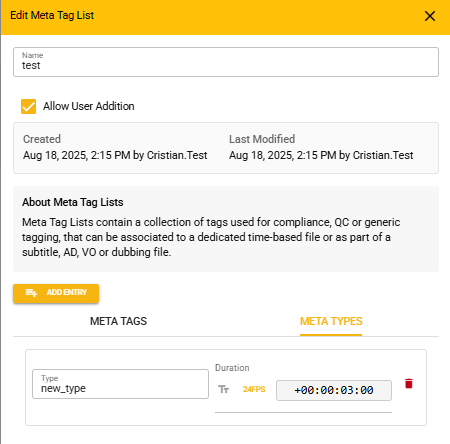
Create a name for the type
Set its default duration.
Press save when you are done.
Assigning a tag list ta yumeta file
Right click on the header of your yumeta file and then select Tag Lists
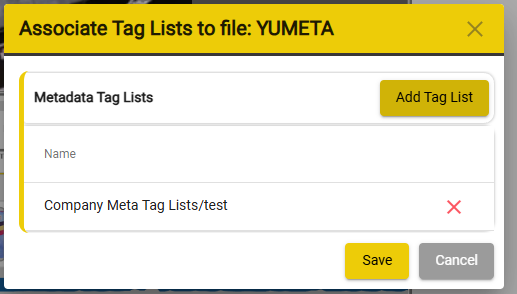
Press the Add Tag List button to add one (or more) tag list/lists.
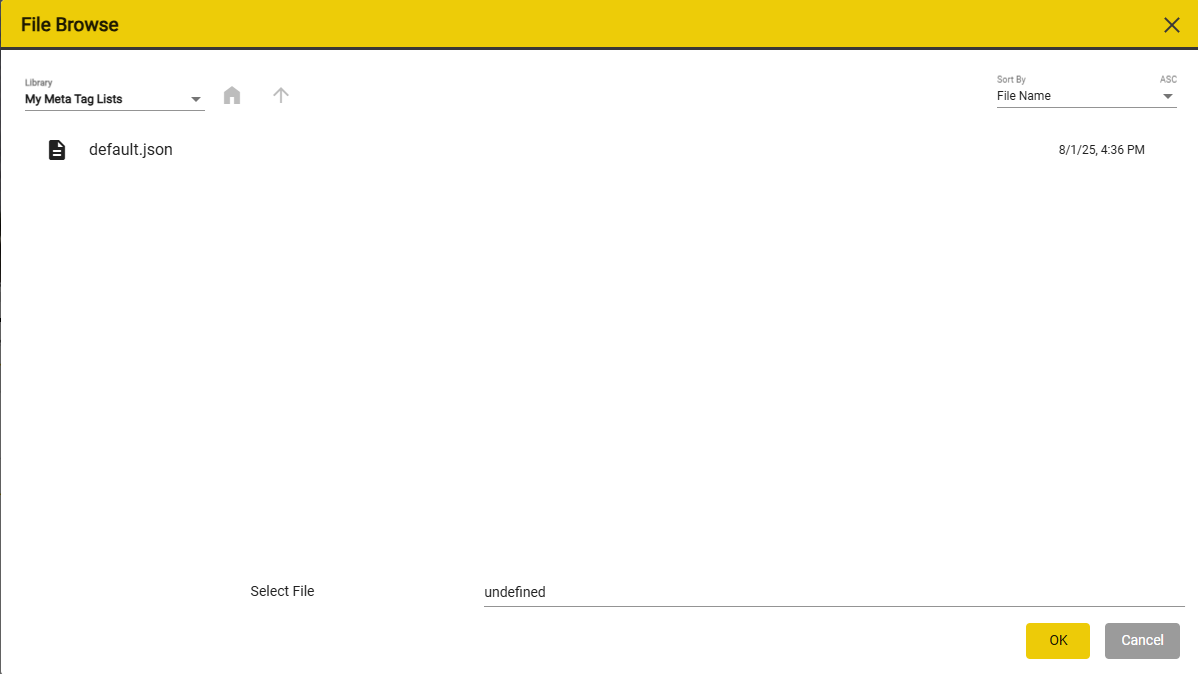
Browse for your Tag List then press OK then Save.
Inserting Tags in Stellar
Navigate to the timecode where you want to insert the Tag.
Press Ctrl + Enter to open the Insert Tag menu.
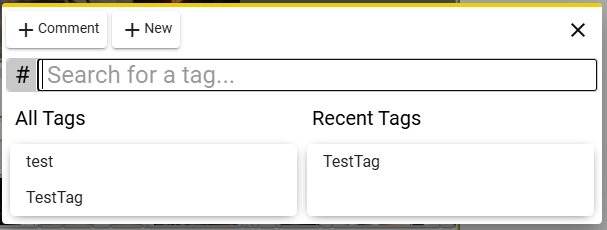
Select one of the existing tags.
A box with the selected tag will be immediately inserted at the current position in the video.
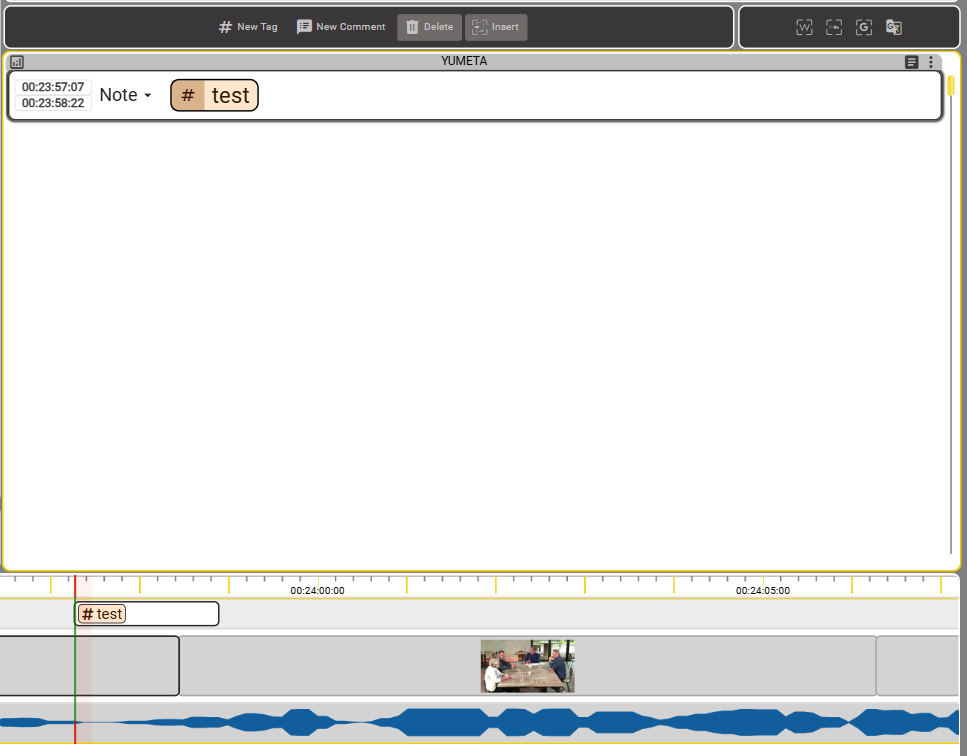
If you want to add more tag into a box, you can select the box and then press F3.
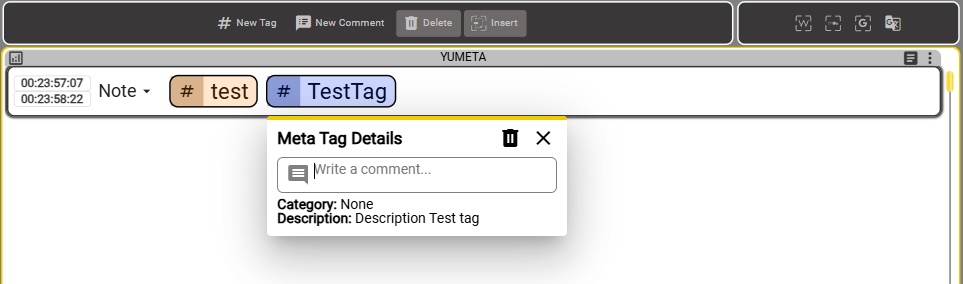
Once a new tag has been added you also have the option of introducing some details related to the tag.
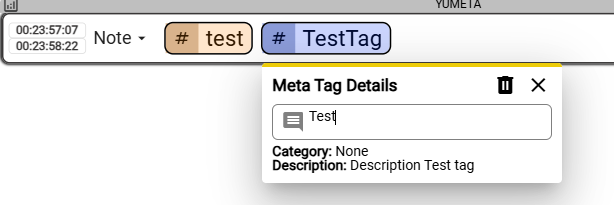
Tag details will appear on the right and have a lighter background.

Insert comments
By pressing Shift + F3 you can introduce comments.

Comments will appear in Red

File Overview
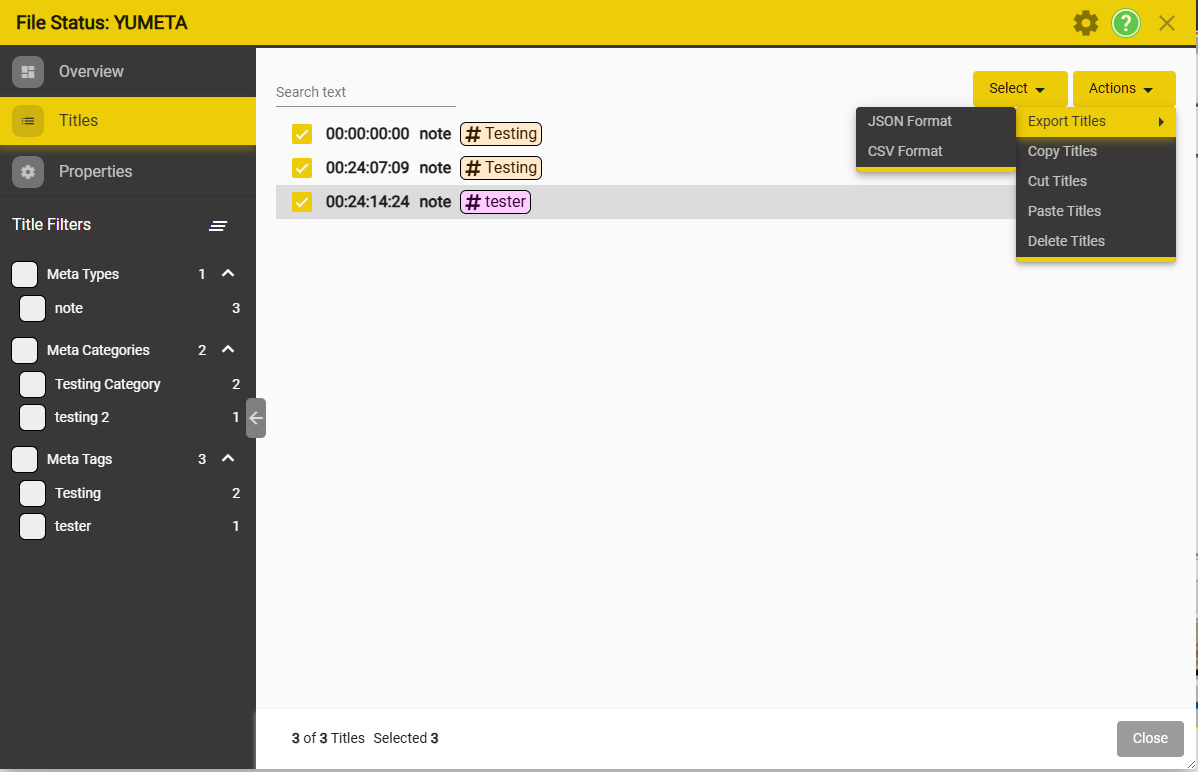
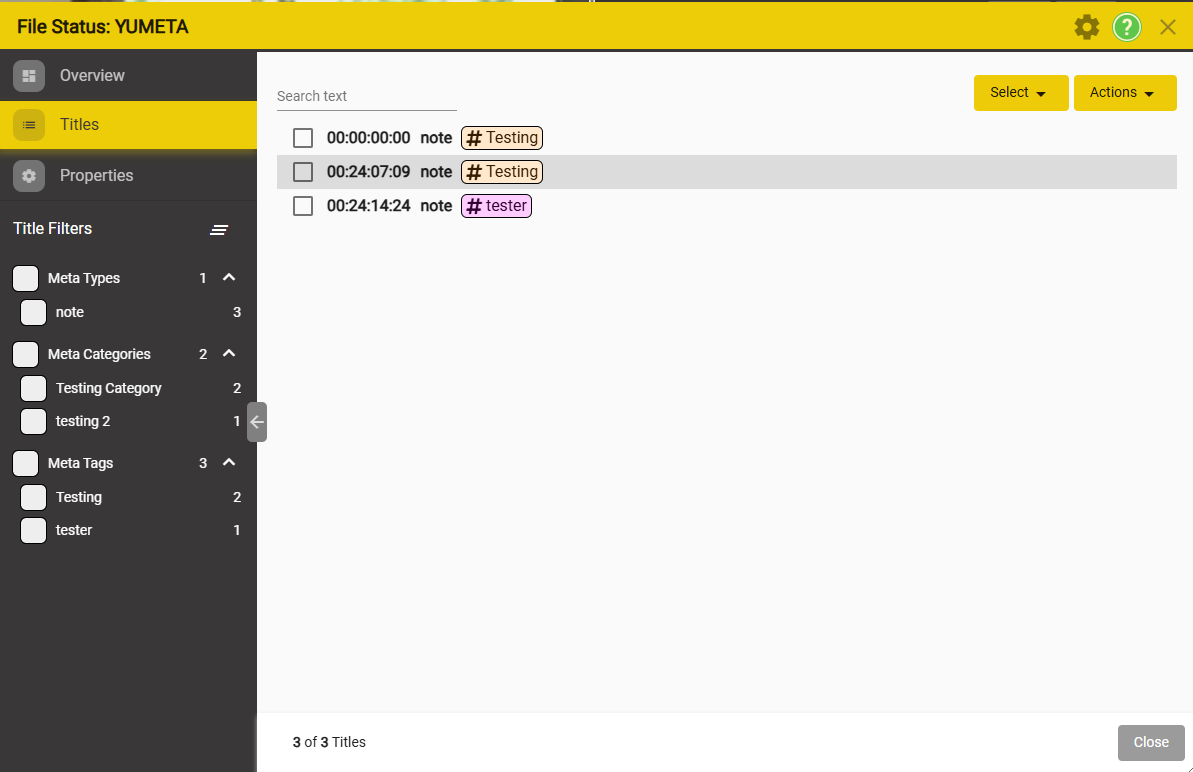
By accessing the file Status Window you will be able to see a summary of all existing elements, grouped by: Meta Types, Meta Categories and Meta Tags.
Exporting to CSV or JSON
You can export the list by going to Actions → Export Titles